Barcode & QR code extraction from documents
Extract 1D/2D barcode data, trigger actions, and optimise high-volume workflows.
Barcode Extraction
Read Barcode Data from Documents
Extract 1D and 2D barcode values directly from scanned or imported documents. Assign barcode content to index fields for database export, report generation, or dynamic file naming.
Custom Actions
Assign Actions to Barcodes
Go beyond simple value extraction. Define custom actions triggered by barcode values — set field values automatically, split documents, or route batches to different output destinations.
Use this page as document separator
Print a few copies of this page and put in between your documents to split it automatically
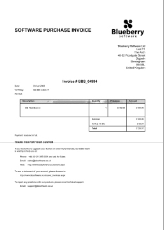
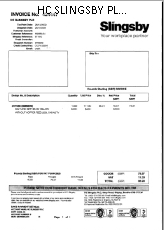
Patch Codes
Optimise Capture Flows
Use Patch Code pages to separate documents or trigger field group changes automatically — ideal for high-throughput scanning operations where speed matters.
Supported Barcodes
1D and 2D Barcode Types
ChronoScan reads the common linear and two-dimensional symbologies, several per page and in any of the four reading directions. You choose which types to look for and, if needed, the area of the page to read.
1D barcodes
2D barcodes
Batch Processing
Batch Barcode Extraction from Documents
Automate barcode extraction from documents without anyone at the keyboard. Scan a stack of paper or drop PDFs and images into a hot folder, and ChronoScan reads every barcode, separates the documents and exports them.
- Start a new document on every page that carries a barcode
- Delete or ignore separator pages once they have been read
- Split every N pages, where N is the value of a numeric barcode
- Rotate the page automatically so the barcode ends up horizontal
Barcode Metadata
Barcode Metadata Extraction for Indexing
Each barcode value becomes document metadata. Map it to an index field, use it to name the output file or folder, send it to your database, CSV or XML export, or look it up in your own database to fill in the remaining fields automatically.
Logistics
Barcode Extraction for Logistics Documents
Delivery notes, proofs of delivery and shipping documents usually carry the order or shipment number as a barcode. ChronoScan reads it from the scanned page, files each document under that number and passes it to your ERP or archive, so a signed delivery note can be found by its order number. See the delivery notes solution.