A configuration is what the user sees on the device as a choice of what to scan: it links a ChronoScan job with the fields to ask for and the scan settings. A job can have several configurations (for example one per document class), and a configuration can be offered on all machines or only on some.
In the Settings group click Add.
Fill in the General tab (below).
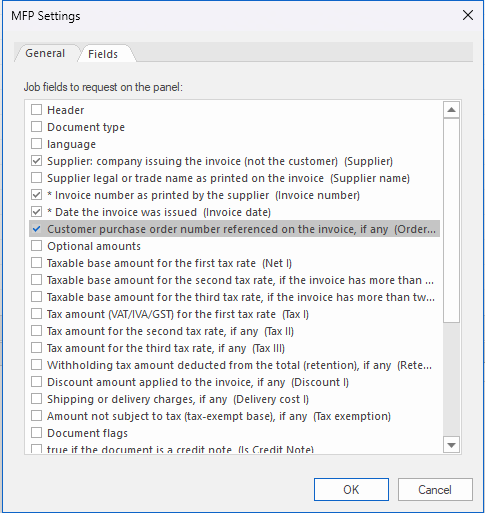
Fields tab: check the job fields the user fills in on the device.
Click OK. The configuration is available on the devices immediately, no re-registration needed.
General tab
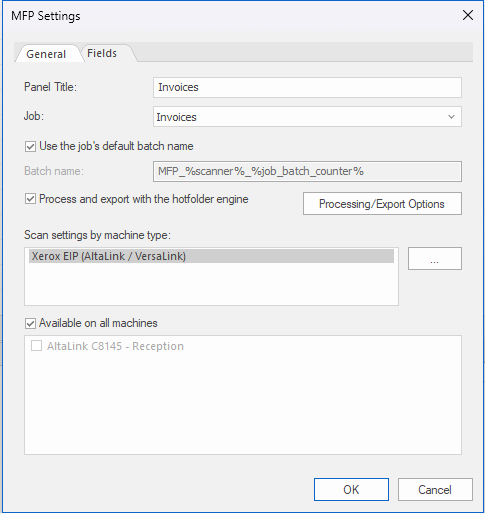
General tab of a capture configuration.
Panel Title: the name shown on the button of the configuration on the device screen.
Description (optional): a short text shown in small print under the title, on the same button. Up to 120 characters; the button shows two lines of it.
Icon: the icon of the button, from a fixed set: document (the default), invoice, contract, mail, person, ID document, folder, package, transport, order, bank, health, form, money, legal and housing.
Job: the ChronoScan job that receives the scans.
Batch name: by default the job's own batch name. Uncheck Use the job's default batch name to give a pattern, for example MFP_%scanner%_%job_batch_counter% (variables below).
Process and export with the hotfolder engine: check it so that batches are processed and exported automatically. Processing/Export Options opens the job's hot folder processing operations (OCR, separation, export...), the same ones used for hot folders; see HotFolder Tasks. They must be configured for the batches to be processed. On Enterprise jobs the processing server takes the batch instead, whatever this option says.
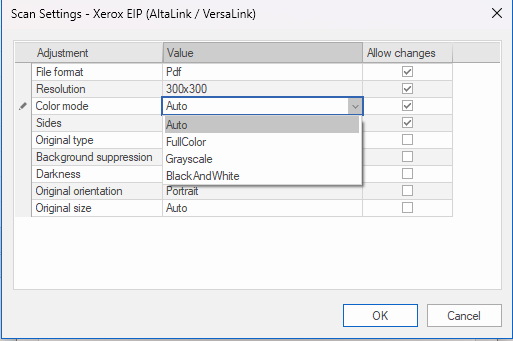
Scan settings by machine type: select the type and click .... For each setting choose the value and whether the user may change it on the device (Allow changes). Only the settings allowed are shown on the device.
Available on all machines, or check the machines that offer this configuration.
Batch name variables
Variable
Value
%scanner%
The name of the machine the scan comes from, as given in the Machine dialog.
%job_batch_counter%
The batch counter of the job (the same one hot folders use).
%.08.batch_current%, dates...
Any other batch name variable of ChronoScan, as in the job's own batch name; see HotFolder Tasks.
Scan settings (Xerox)
Scan settings for the Xerox devices: value and whether the user may change it.
The settings available for the Xerox devices, with their values (the first one is the preset) and whether the user may change them on the device by default:
Only the settings marked as changeable are shown on the device screen, under Modify; the others are applied silently. The scan arrives in the file format chosen here and is split into documents by the job.
Fields tab
Fields tab: the job fields asked for on the device screen.
Check the job fields the user fills in on the device, in the order they are shown. Required fields and validation masks of the job apply as in ChronoScan: the device refuses the scan until they are met, showing the message of the rule. Rules that work on the document itself (previous values of the masterkey, equal to or sum of other fields) cannot be checked before the document exists: they are applied in ChronoScan once the batch is created. A change in a value list takes up to a minute to reach the devices. See Fields: types, validation and lists. How each kind of field is shown on the device:
Field
On the device
Text
A text box with the device keyboard.
Date
A date picker of the device. On a device older than EIP 4.2 there is no picker: the date is typed, day, month and year (month first where the device language is US English) with any separator (18/11/2026, 18.11.26) or none (18112026), and a date that does not exist is refused on the screen.
Number, decimal
A text box with the numeric keyboard.
Value list
A button that opens a full screen picker with a search box; the user cannot type a value outside the list.
Required field
Marked on the screen; the scan is refused while it is empty.
Default value
Pre-filled from the job field; the user may change it unless the field is read-only.
Read-only field
Shown with its default value, not editable.
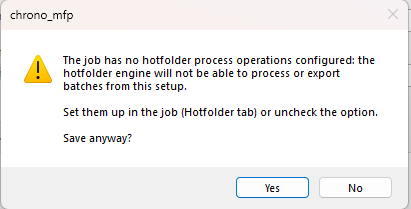
If the job has no hot folder processing operations yet, ChronoScan warns about it when saving: the batches would arrive but not be processed.
Warning shown when the job has no hot folder operations configured.
The Settings list shows every configuration with its description, its job, the number of fields asked for and the machines that offer it. Edit and Remove act on the selected row; a removed configuration disappears from the devices at once.
The configurations list: title shown on the device, job, number of fields and machines.
Processing needs the ChronoScan hot folder engine running on this server: either the hot folder monitor in the Tasks/HotFolder tab or the ChronoScan hot folder service. The status line shows "Hotfolder engine not detected" when none is running, and batches wait as pending.