13.4. Scanning from the device and monitoring the batches
On the device home screen press ChronoScan.
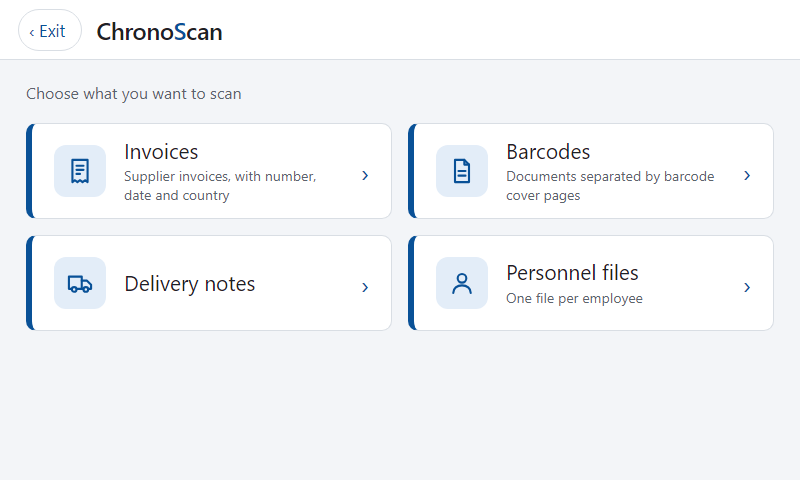
Choose the configuration. Each one is a button with its icon, its title and, when it has one, its description. Exit, at the top of this first screen, leaves ChronoScan: the device goes back to its own home screen (the Home button of the device does the same).
Device screen after pressing the ChronoScan button: the configurations available on this machine, each with its icon, title and description.
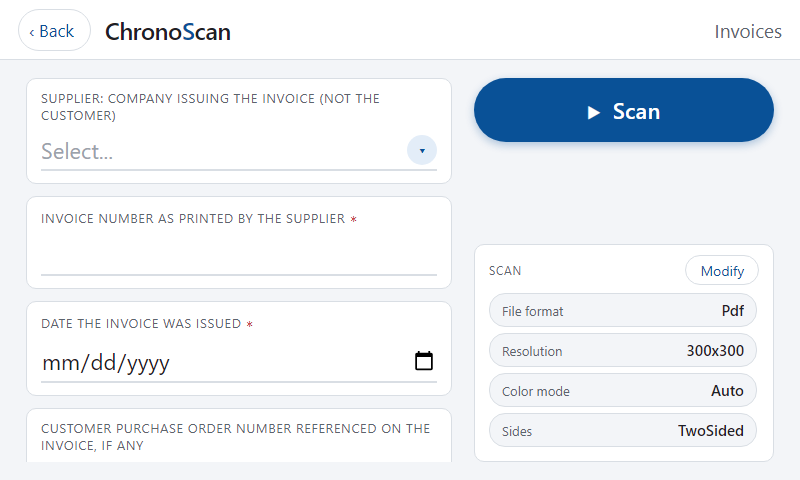
Fill in the fields and press Scan. The scan settings allowed by the configuration can be changed with Modify before scanning. A value the job does not accept (required field, validation mask, a value outside the list) is refused on the screen, with the reason, before anything is scanned.
A configuration: the job fields on the left, the Scan button and the scan settings the user may change on the right.
The device scans and sends the document to the server. The screen shows the progress until ChronoScan confirms the batch, with its name and the number of documents and pages created. The configuration stays on the screen, ready for the next scan.
Older devices: on a Xerox device older than EIP 4.2 the same screens are shown by the older browser of the device. A date field is a text box where the date is typed (the box shows the expected order, for example dd/mm/yyyy), and a long list is moved by dragging it or with its scrollbar. Everything else is the same.
Generated batches
In ChronoScan, the Batches generated list of the MFP Capture tab shows each scan with its date, machine, configuration, job, batch, documents, pages and state. Double-click a row to open the batch; the right-click menu opens the processing, output and export logs of the batch. Batches currently being worked on are highlighted.
Generated batches: one row per scan, with the batch created in ChronoScan and its state.
State
Meaning
Scan started
The user pressed Scan on the device; the service is waiting for the file.
Received
The file and the index data arrived from the device.
Creating batch, Batch created
The service is creating the batch in the job, and then its name. From here the batch is in the Batches panel of the job.
Processing
The hot folder engine took the batch and is running the job's processing operations.
Processed
Processing finished; the export follows if the job has output modules.
Exported
The export finished. The row stays in the list for reference.
Process error, Export error
An operation failed; open the processing or export log from the right-click menu.
Warning
The batch was created but something needs attention, for example no hot folder operations configured.
ERROR
The batch could not be created: the reason is in the row and in the MFP Service Activity log.
The batch is a normal batch of the job: it appears in the Batches panel of the Capture tab, it can be indexed and validated, and the hot folder engine processes and exports it with the operations configured for the job. The index values typed on the device are already in the fields when the batch is created, and the scan file is split into documents with the job's split rules; see Document splitting and Processing Batches.