To properly display this page you need a browser with JavaScript support.
Overview
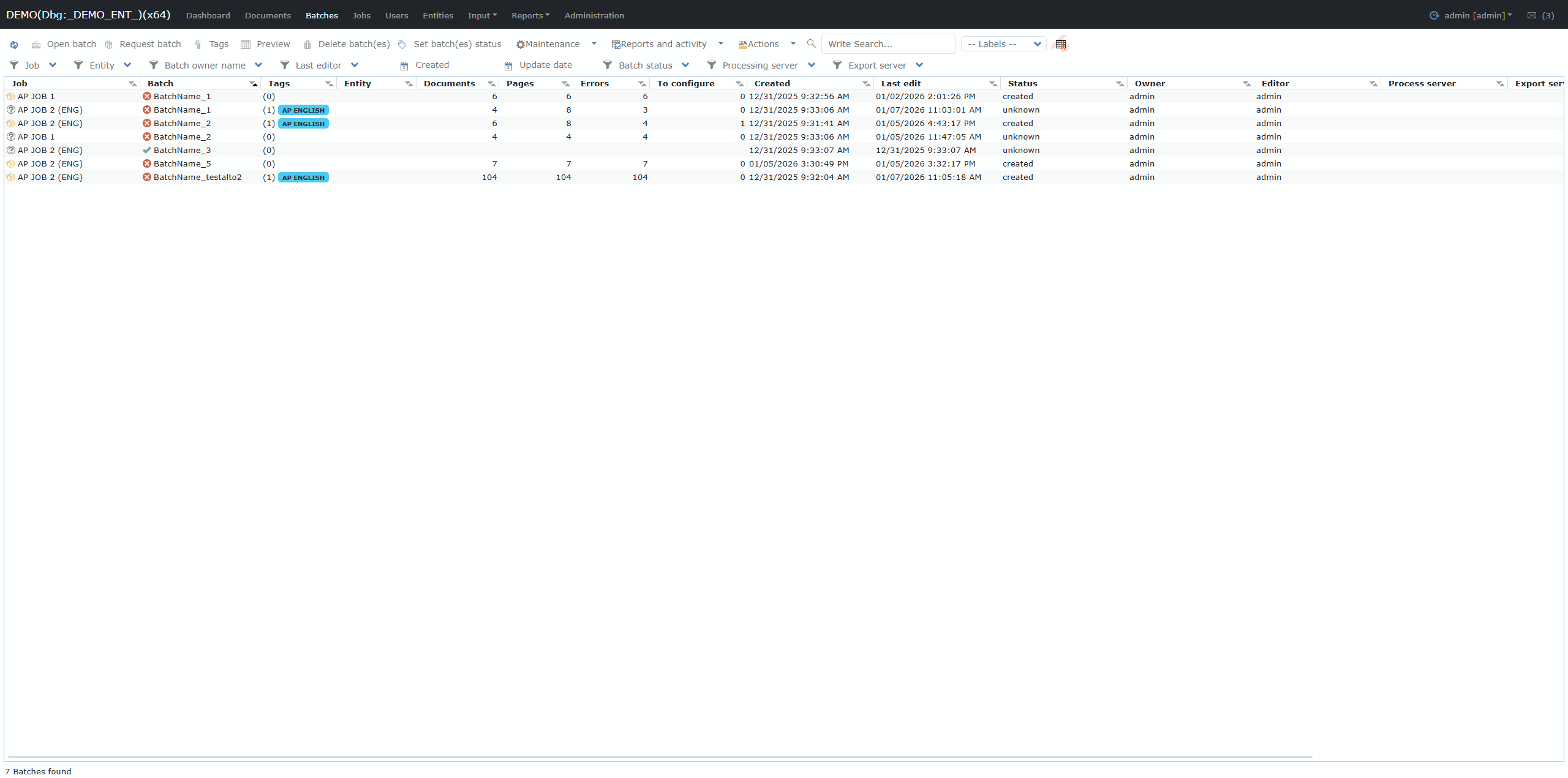
The Batches tab provides a centralized view and management point for all document batches (collections of documents grouped together for processing) within the platform.
Here, you can:
View the status of every batch.
Monitor progress and errors.
Execute batch-level actions (processing, export, tagging, etc.).
Apply advanced filtering and search. Main interface elements
1. Toolbar
Contains quick actions to work with the selected batch(es):
Open batch: Opens the batch for processing or validation.
Request batch: Request action or processing for the batch.
Tags: Assign or manage tags/labels on the selected batches.
Preview: Preview documents (images) in the batch.
Delete batch(es): Remove selected batches from the system.
Set batch(es) status: Change the status for one or more batches.
Maintenance: Batch maintenance options for admins.
Reports and activity: Access reporting and activity logs.
Other Actions: Additional batch management actions (as configured). Filter toolbars above the grid allow you to quickly limit results by:
Job, Entity, Batch owner name, Last editor, Created date, Update date
Batch status, Processing server, Export server, and more. A search box enables keyword searching across all batch columns.
Labels: At the right, the “Labels” dropdown allows rapid filtering by color-coded or named labels.
2. Batches Grid/Table
The main grid lists each batch as a row, with columns such as:
Job: The job/workflow the batch belongs to.
Batch: Batch name or identifier.
Tags: Visual labels assigned to the batch.
Entity: Associated client or entity.
Documents: Number of documents in the batch.
Pages: Total number of pages.
Errors: Number of errors (validation or processing) in the batch.
To configure: Number of documents awaiting configuration or still in an incomplete status.
Created: Date/time batch was created.
Last edit: Date/time of last modification.
Status: Current batch status (e.g. "created", "unknown", etc.).
Owner: User who owns (is responsible for) the batch.
Editor: Last user who modified the batch.
Process server, Export server: If distributed, which worker/server is processing or exporting the batch. You can sort and filter by any column. Columns are configurable, so your environment may display more/less information.
3. Action buttons for each batch
When a batch is selected, additional actions become available either from right-click or toolbar buttons (e.g. open, export, tag, delete).
4. Footer
Displays the total number of batches currently shown/found (e.g. “7 Batches found” Filtering and Search
You can combine top filter dropdowns, text search, and label filters to instantly find batches based on any field or status.
Best Practices and Tips
Regularly check the Errors and To configure columns to identify stuck or problematic batches.
Use tags/labels for color-coding or marking batches for special handling or review.
Use filter and search to quickly zoom in on batches for a specific job, owner, or time period.
Archive or delete completed batches to keep your workspace clean.