4.7. Importing documents from M-Files
The M-Files Import input module takes the objects of an M-Files vault that match a saved search, downloads their files into a batch and writes the result back to properties of the object (status, batch, information, number of pages...). Together with the M-Files export module, which can return the processed document to the same object, it closes the loop: documents dropped in M-Files are captured by ChronoScan and come back indexed, with their metadata filled in. The module works interactively from the Scan/Input tab and unattended from a hot folder task.
Requirements: the M-Files Desktop client on the station, which installs the M-Files API the module talks through; a saved M-Files connection with an account allowed to read, check out and check in the objects of the vault and to edit the properties you update; and, in the vault, a property that marks the state of each object (a value list or a text property), used by the search to pick only the pending objects and by ChronoScan to mark them as processed.
Connections and searches
-
M-FILES connections: a connection has a configuration name, the server host name or IP, the type of connection credentials (current Windows user, M-Files user or Windows user with User, Password and User Domain), the protocol sequence and endpoint (ncacn_ip_tcp and port 2266 by default, or HTTPS through gRPC), the anonymous and encrypted connection flags and the retries on connection errors. Test connection checks it before saving. The same connections are used by the M-Files export module.
-
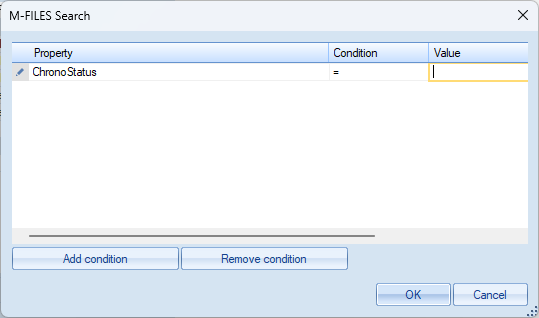
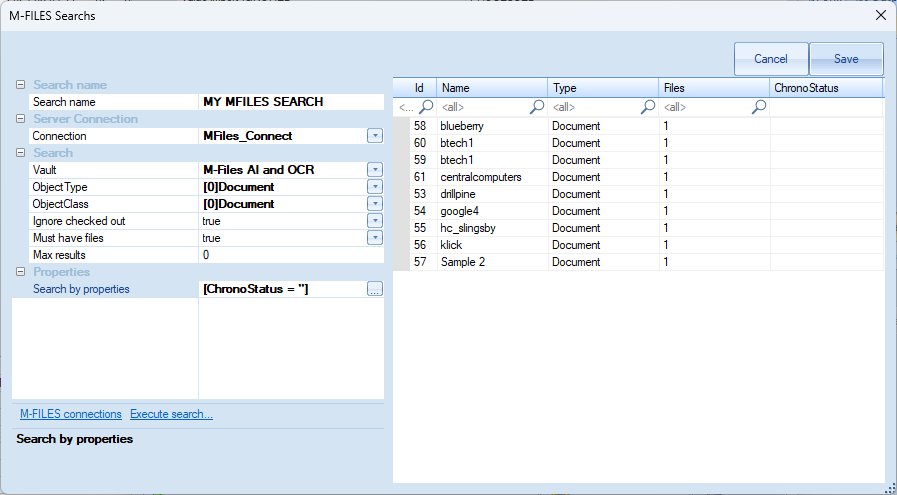
M-FILES searches: a search names the connection, the Vault, the ObjectType and ObjectClass to look for (Document / Document in the usual case), whether to Ignore checked out objects, whether the objects Must have files, an optional Files wildcard pattern (for example *.pdf), the Max results asked to the server (0 = no limit) and the Timeout in seconds. Under Search Criteria, Search by properties opens the conditions editor: one row per property with its condition (=, <>, contains, empty...) and value; all the conditions must be met. Return properties decides which properties of the object are read (all of them, or a selection). The link Execute search... runs the search and lists the objects found with their Id, name, type, number of files and returned properties, so you can check the conditions before saving.
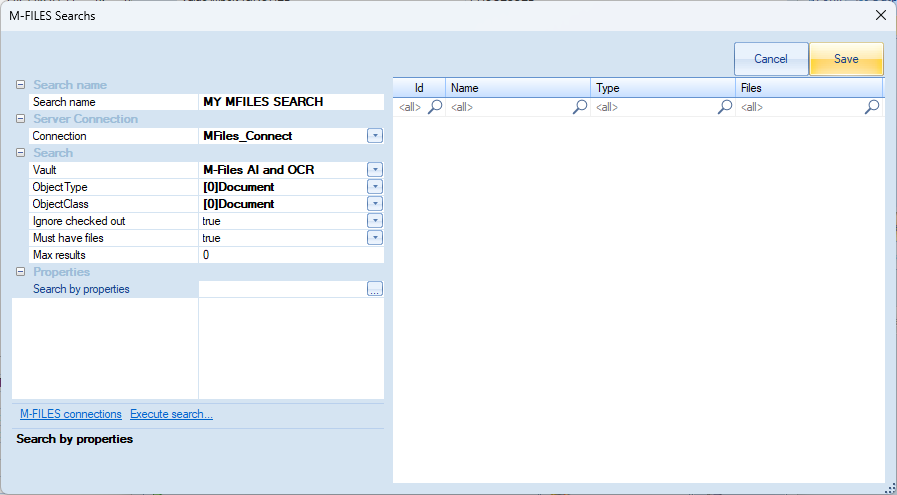
A saved search: connection, vault, object type and class, and a condition on the status property.
The conditions editor opened from Search by properties: the status property must be empty.
Execute search... lists the objects the search returns; the status property appears as a column because it is a returned property.
Deleted objects are always excluded from the search. The usual pattern is a status property of the vault (a value list with values such as INPROCESS and PROCESSED, or a text property) that is empty on the documents to capture: the search asks for an empty status, ChronoScan sets it to the "import OK" value when it takes the document, and the export sets it to the final value when it returns the processed document.
Creating an import configuration
In the Documents and Image Input toolbar of the Scan/Input tab select M-Files Import and click Start Input. The window Input documents from M-Files lists the configurations of the job; its menu offers New configuration, Copy configuration, Remove, Edit search (opens the searches window) and Test connection. Each configuration has these properties:
-
M-Files objects to import options: the Search to run, chosen among the saved searches; below it the connection, vault, object class and object type of that search are shown for information. Import file types lists the extensions to import (for example .pdf;.png;.tif;.docx; empty means all), Ignore files by regular expression skips the files whose name matches, Ignore PDF files with text skips the PDF files that already have a text layer (with Minimum words to consider that it has text, -1 = do not check), Ignore office files (non image, non PDF) skips everything that is not a PDF or an image, and Import emails allows .eml and .msg files.
-
Properties to update in M-Files: Property status and its three values, Value import OK, Value import ERROR and Value import IGNORED; Property batch receives the name of the batch the documents went to; Property information receives a text with the number of files imported, the date and the messages of the run; Property number of pages, Property has text layer and Property for number of words receive what was found in the files before the import. All of them are optional; the names are the names of the properties in the vault, and a value list property receives the item with that name.
-
ChronoScan import options: Don't import, only check and update M-Files fields runs the checks and writes the properties without creating documents; Continue if there is an error goes on with the next object after an error instead of stopping the run; Maximum number of objects to import limits one run or sweep (0 = no limit); Pages to extract takes only some pages of each file (1 = first page, 1,3,8 = those pages, 3- = from the third on, 1,3,5-8 = pages and ranges).
-
Pdf documents options: the image extraction mode (extract the images, convert the page to image, or auto detect), import colors and resolution, text extraction and omitting the text of image PDF files, attachments, saving the original PDF page and document, automatic page orientation and the PDF password. They are the options of the Import PDF module.
-
Mail file options: for .eml and .msg files, converting the message body to PDF and where to put it, importing the attachments, excluding the inline images and starting a new document with each attachment, as in Importing e-mail.
The buttons of the window: Import runs the configuration now into the open batch; Explore opens the search explorer, which runs the search of the configuration and lists the objects that would be imported; Finish closes the window.
What happens in a run
-
The search is run with its conditions. Checked out objects are skipped when the search says so, and the run stops at the maximum number of objects of the configuration. The Output window shows the server, vault, type, class and conditions used and the number of objects found.
-
Each object is checked out by ChronoScan and its files are examined: extension, regular expression, PDF with text, office file, and the number of pages and words. The files that do not pass are ignored.
-
The remaining files are downloaded and imported with the PDF or e-mail options. Each document receives the M-Files system fields (see below) and the properties of the object.
-
The properties are written and the object is checked in: the status gets the OK value, or the IGNORED value when all the files were ignored, or the ERROR value when nothing could be imported or an error happened; the batch, information, pages, words and text layer properties are filled in if configured. If the properties cannot be written the check out is undone and the object stays as it was.
ChronoScan does not remember which objects it has already imported: an object that still matches the search is imported again in the next run. The search must therefore exclude the processed objects, normally through the status property (condition "status is empty", or "status <> PROCESSED"). An object left with the OK value is not taken again as long as the condition excludes that value.
M-Files fields of the imported documents
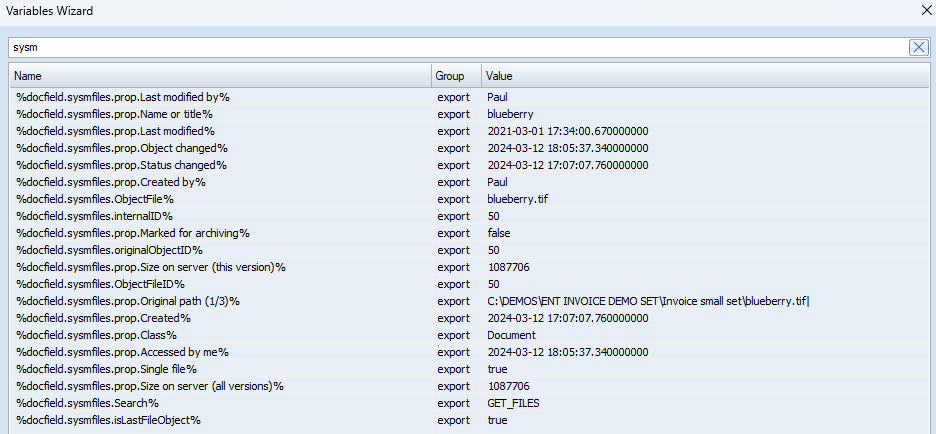
Every imported document carries system fields with the origin of the file, available in scripts, in the Variables Wizard and in the output modules as %docfield.name%:
|
Field
|
Content
|
|
sysmfiles.originalObjectID
|
ID of the object in the vault (the one to use to find the object again on export).
|
|
sysmfiles.OriginalObjID
|
Original object ID; the same value unless the object comes from a replicated vault.
|
|
sysmfiles.internalID
|
Internal ID of the object version that was imported.
|
|
sysmfiles.Title
|
Title of the object.
|
|
sysmfiles.ObjectFileID
|
ID of the file inside the object.
|
|
sysmfiles.ObjectFile
|
File name with extension.
|
|
sysmfiles.Search
|
Name of the search that found the object.
|
|
sysmfiles.isLastFileObject
|
true on the last document created from an object with several files, so a script knows when the whole object has been processed.
|
|
sysmfiles.prop.<Property name>
|
One field per property of the object (except multi-select lookups), with its value as text: Name or title, Class, Created by, Last modified, your own properties...
|
The Variables Wizard filtered by "sysm": the M-Files fields of a document, ready to be used in an export module.
Returning the document to M-Files
The export is configured with the M-Files export module (see also the M-FILES Export Guide and linking scanned documents to an existing object). To update the object that was imported instead of creating a new one, enable Search object to add/replace, search by ID with the value %docfield.sysmfiles.originalObjectID%, and choose whether to replace the file (for example the scanned TIFF by the indexed PDF) or add it. In the linked fields set the status property to its final value (PROCESSED in the example); with a value list property use the custom function search_mfiles_listvalue_id so the value is looked up in the list (Working with M-FILES Value Lists).
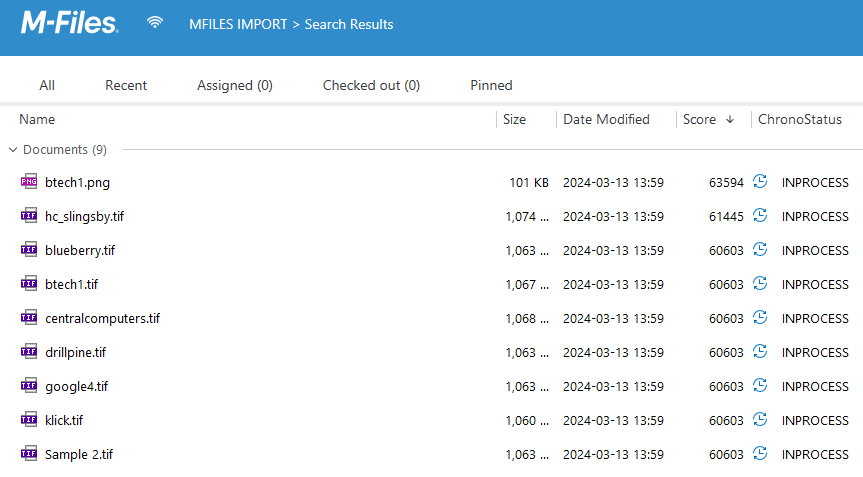
The vault after an import: the status property of the captured documents is INPROCESS until the export sets it to PROCESSED.
Hot folder
In the Tasks/HotFolder tab add a task with the module M-Files Import and one of the configurations of the job. On each sweep the task counts the pending objects of the search, creates a batch when there are documents to import and runs the import; the objects that are ignored or that only need their properties updated are dealt with during the count and do not create a batch. The rest of the task options (processing when the input finishes, export, notifications, run frequency) are the ones of any task, see HotFolder Tasks. In ChronoScan Enterprise the input server runs the same tasks. The task log and the Output window record the search, the objects found, the files imported or ignored and the properties written ("Object ... updated to ...").