7.3.9. Excel Conversion Export Module
The Excel conversion module (Excel Report in the Add Output window) writes the captured data of a batch to an Excel workbook, .xlsx or .xls. ChronoScan generates the file itself: Microsoft Excel does not need to be installed on the station or on the server. Amounts, numbers and dates are written as real Excel values with a number format, not as text, so the workbook can be filtered, summed and used in pivot tables straight away.
Like the other conversion modules it takes the documents of the batch (source ScannedImageFormat) and produces files in the batch conversion folder; a destination module (file system, e-mail, FTP, SharePoint...) then delivers them with the name and folder you configure there. See Exporting Batches and Output Modules.
What the workbook looks like
Two layouts are available (Layout option):
-
Table: a header row and one row per document. If the job has capture grids (xGrid) and their export is enabled, there is one row per grid line, with the document fields repeated on every line (or only on the first line of each document, with Do not repeat document fields on xGrid lines). This is the layout for data that will be filtered or loaded into another system, equivalent to the TXT module but with typed cells.
-
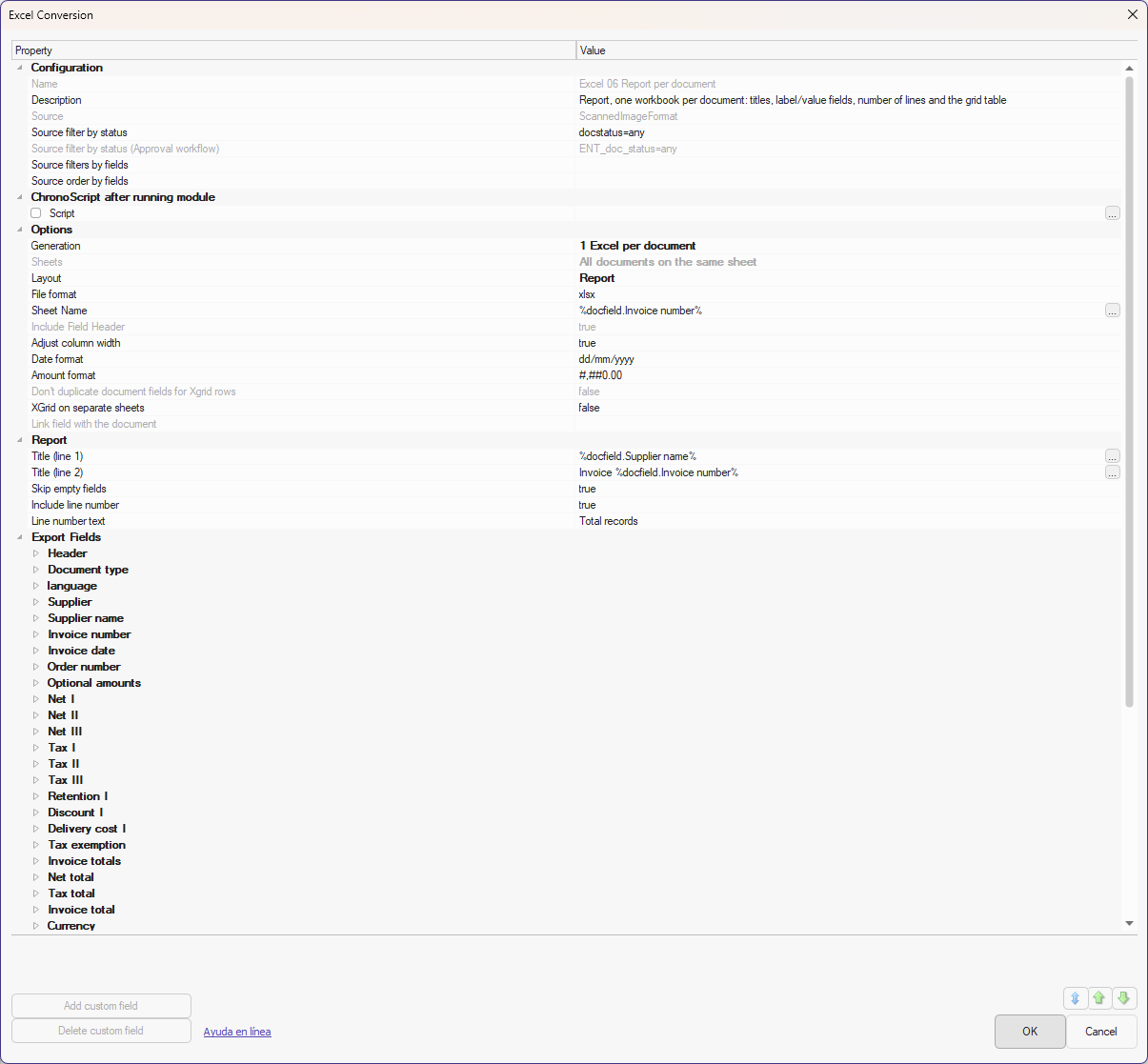
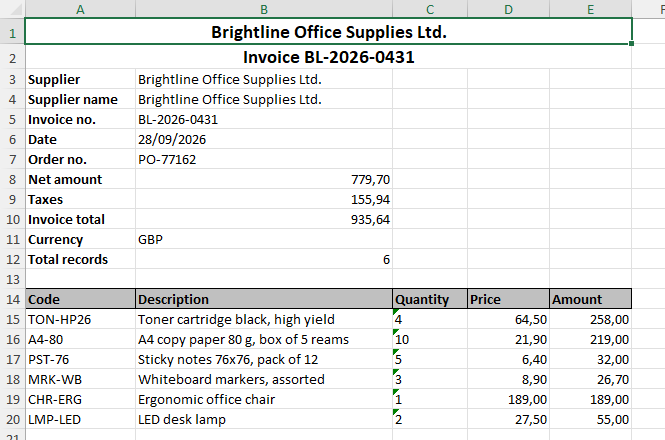
Report: one block per document, as a printed report: up to two title lines (merged and centred), the document fields as label / value pairs, optionally the number of grid lines, and below them the lines of each capture grid as a table with its own header. Fields without a value can be left out (Skip empty fields).
A report workbook, one per invoice: titles, label / value block with the number of lines, and the grid lines as a table.
The workbook can be generated once per document or once per batch (Generation option). Per batch, the documents go either to the same sheet one after another or to one sheet per document (Sheets option); the sheet names can be built from document fields (Sheet name, for example %docfield.Invoice number%).
Options
|
Option
|
Meaning
|
|
Generation
|
1 Excel per document, or 1 Excel per batch.
|
|
Sheets
|
Batch mode only: all the documents in the same sheet, or one sheet per document.
|
|
Layout
|
Table or Report (see above).
|
|
File format
|
xlsx (Excel 2007 and later) or xls (Excel 97-2003).
|
|
Sheet name
|
Name of the sheet; accepts document variables. Empty: "Data", or "Doc 1", "Doc 2"... with one sheet per document. Excel limits sheet names to 31 characters and does not allow [ ] : * ? / \ ; the module trims and cleans the name and adds (2), (3)... when two sheets would get the same name.
|
|
Include field header
|
Table layout: write the header row with the column names.
|
|
Fit column width
|
Adjust the width of each column to its content.
|
|
Date format
|
Excel number format of the date cells, for example dd/mm/yyyy, mm/dd/yyyy or yyyy-mm-dd.
|
|
Amount format
|
Excel number format of amounts and decimal numbers, for example #,##0.00 or 0.00; a currency symbol can be included.
|
|
Do not repeat document fields on xGrid lines
|
Table layout: the document fields are written only on the first grid line of each document.
|
|
xGrid in separate sheets
|
Each capture grid goes to its own sheet at the end of the workbook, with the lines of all the documents of the file (see below).
|
|
Document link field
|
With xGrid in separate sheets: the field written as the first column of the grid sheets to identify the document of each line. Empty: the first exported field.
|
Report options
|
Option
|
Meaning
|
|
Title (line 1) / Title (line 2)
|
Two title lines, merged across the columns and centred, in bold 14 pt. They accept variables such as %docfield.Supplier name%. Leave empty to omit.
|
|
Skip empty fields
|
Fields without a value are not written in the label / value block (default: on).
|
|
Include number of lines
|
Adds a row with the total number of grid lines of the document.
|
|
Text of the number of lines
|
The label of that row, for example "Total records".
|
Fields and grid columns
The Export fields group lists the job fields: set Export to true for the ones to include and, if you want a different column name or label, type it in Header text. The order of the list is the order of the columns (and of the label / value rows in the report): move the fields with the up and down arrows. Custom fields add a column with a value built from variables, for example the batch name or the source file name. See Fields: types, validation and lists.
Each Grid Control module of the job has its own group: Export xGrid module data to include the grid, the Sheet name used when the grids go to separate sheets, and the list of columns, each with Export and Header text.
How the values are written
|
Field or column type
|
Cell
|
|
Amount, decimal number
|
Number with the Amount format.
|
|
Number
|
Number (integer).
|
|
Date
|
Excel date with the Date format. The value is parsed with the capture date format of the station; a date that cannot be parsed is written as text.
|
|
Capture grid amount / number / date columns
|
Same as above, according to the column type defined in the grid.
|
|
Anything else (text, lists, booleans, barcodes...)
|
Text, as captured.
|
The types come from the field definition (Data Field Types) and from the column type of the grid. A text field that happens to contain a number is written as text; make it a number or amount field if you need a numeric cell.
xGrid in separate sheets
With this option the main sheet keeps only the document data (one row per document in the Table layout, the title and label / value block in the Report layout) and each capture grid gets a sheet of its own, placed after the document sheets, with the lines of every document of the file. The first column of a grid sheet is the Document link field (for example the invoice number), so every line can be related to its document; the other columns are the exported grid columns. Grid sheets are named with the Sheet name of the Grid Control module ("Grid 1", "Grid 2"... when empty).
Preview
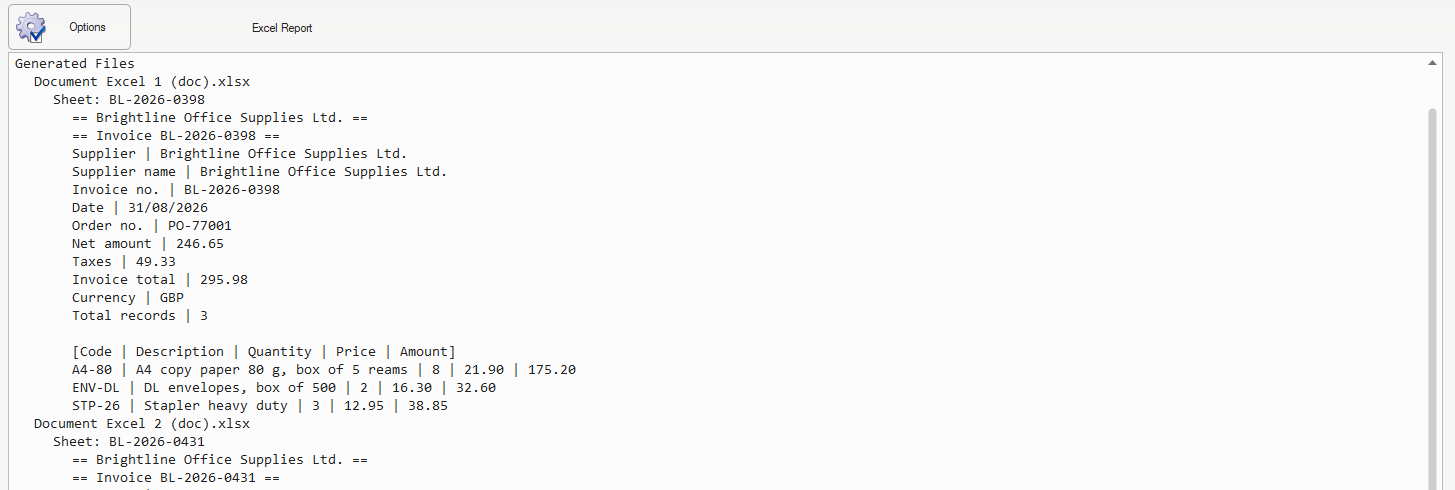
The module panel in the Configure Image and Data Output window shows a preview of the workbook that will be generated for the current batch: the files, their sheets and the first rows of each sheet, with the cells separated by "|". The preview uses the same data as the export, so what you see is what the file will contain. Up to 100 documents and 50 rows per sheet are shown.
Notes
-
The name and the folder of the generated file are set in the destination module, as for any conversion module; the extension must match the File format (.xlsx or .xls).
-
Grid columns with no value in a document are written as empty cells; a grid with no lines in a document produces no table in the report.
-
Line breaks inside a value are kept in the cell.
-
In the evaluation version some grid lines are replaced by "Demo version".