7.2. Documents Tab
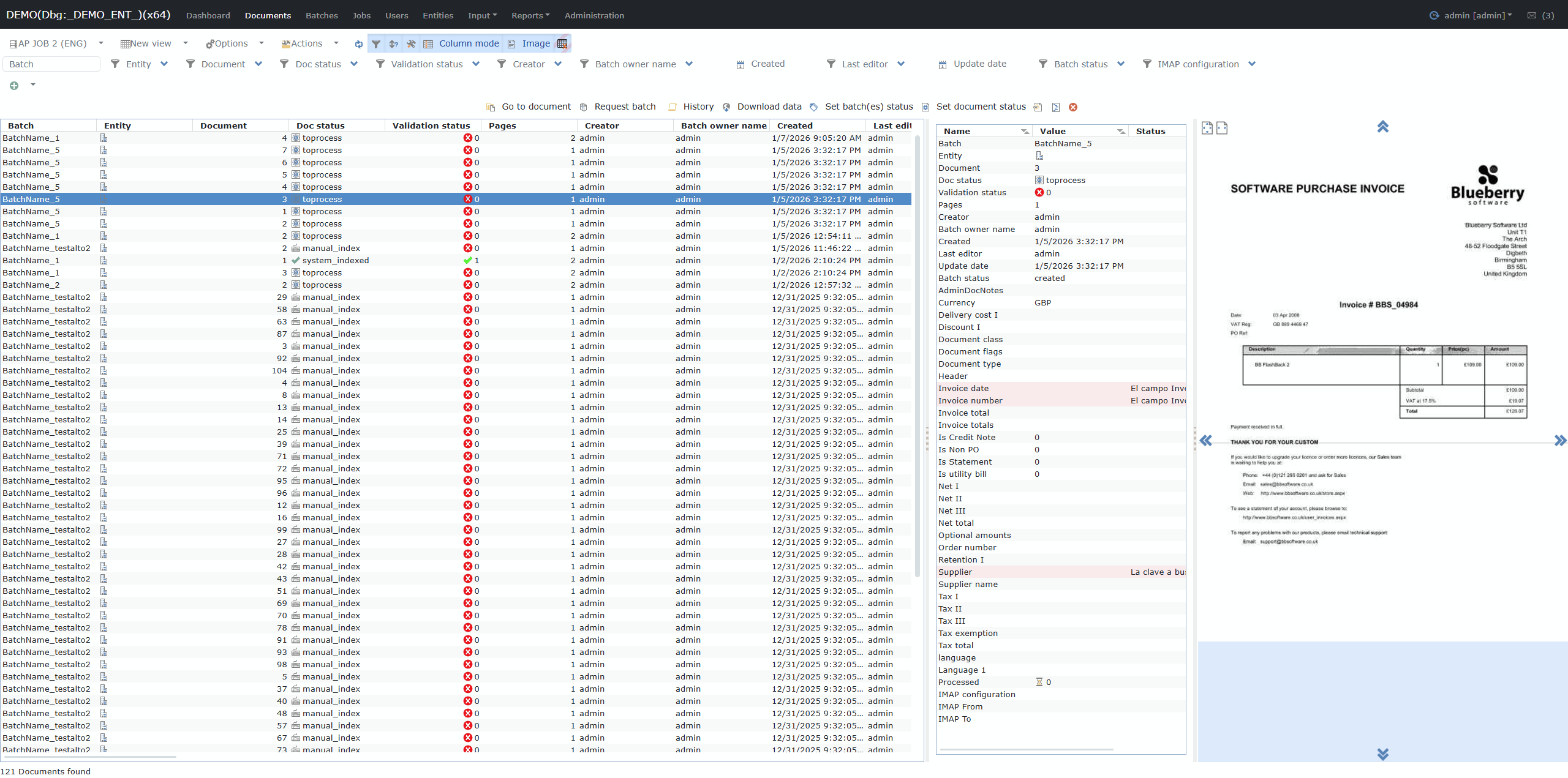
Documents Tab
Overview
The Documents tab is your main workspace for viewing, searching, filtering, and validating all documents within the current job or batch. It provides:
-
Fast access to all document metadata and key workflow statuses.
-
Direct actions on single or multiple documents.
-
Detailed data and visual previews for validation and review.
Main components
1. Toolbar
At the top of the tab, you will find:
-
New view: Open a new documents grid view.
-
Options: Select/display additional options (columns, modes).
-
Actions: Perform batch actions on selected documents.
-
Column mode: Toggle between column view.
-
Image: Show/hide the image/document preview.
-
Dropdown Filters:
-
Batch: Filter documents by batch.
-
Entity: Filter by business entity.
-
Document: Filter by document type/subtype.
-
Doc status: Filter by processing status (e.g., toprocess, manual_index, system_indexed).
-
Validation status: Filter by validation result (OK/Error).
-
Creator / Last editor: Filter by user.
-
Batch owner name: Filter batches by the user who owns them.
-
Created / Update date: Filter by date range.
-
Batch status: Filter by batch status.
-
IMAP configuration: Filter by mail import source/config.
2. Documents Grid
The central table/grid shows one row per document, with the following fields (columns):
-
Batch: Which batch this document belongs to.
-
Entity: Entity/customer/etc. associated to the document.
-
Document: Document filename or label.
-
Doc status: Current workflow status for the document (e.g. "toprocess", "manual_index", "system_indexed").
-
Validation status: Icon showing if the document passed or failed validation (green = OK, red = Error).
-
Pages: Number of pages in the document.
-
Creator, Batch owner name: Responsible users.
-
Created, Last editor, Update date: Date/user audit trail.
-
Batch status: Current status of the batch.
-
... (other columns as configured)
You can sort and filter the table by clicking any column header.
3. Quick Action Buttons
Above the grid:
-
Go to document: Jumps to selected document(s).
-
Request batch: Request processing for the batch.
-
History: View audit trail for the document.
-
Download data: Export data for the selection.
-
Set batch(es) status: Update the status of selected batches.
-
Set document status: Update the status of selected documents.
4. Details/Data Panel
Selecting a document in the grid will show all its fields on the right side, including:
-
All metadata fields for the document:
-
Batch/Entity/Document name
-
Status and validation information
-
All extracted/indexed fields (Invoice number, Date, Supplier, Amounts, custom fields, etc.)
-
Any detected issues highlighted in red.
-
Language and processing flags.
-
At the bottom, batch labels (e.g. AP ENGLISH).
5. Document/Image Preview
On the far right, the image/doc viewer shows the actual scanned document:
-
Zoom, navigation, and multi-page controls.
-
Live overlay with detected key data/flags when appropriate (not shown in this cropped example).
Filtering
-
Dropdown filters allow instant narrowing of results by batch, entity, document type, statuses, users, or any other configured field.
-
Result count at the bottom ("121 Documents found") always updates to match current filters.
Best practices
-
Use filters to focus validation and work on error/failure status only.
-
Use "Go to document" or "Download data" for efficient QA and data export.
-
Keep the data panel open for rapid review and to quickly check any problematic values.